What are Shopify Locations?
Shopify Locations represent the physical places where a store manages or fulfills inventory — such as warehouses, retail stores, pop-ups, or drop-shippers. Each location has its own independent inventory levels, allowing merchants to track stock across multiple sites.
With Shopify’s multi-location functionality, products can exist in one or more locations. Shopify manages stock levels per location, so each has its own inventory count.
How Shopify Locations and ShipHero Interact
Shopify Locations and ShipHero interact primarily through inventory synchronization. When inventory sync is turned on, ShipHero will automatically update product quantities in Shopify but only for the locations that are configured to receive inventory updates.
In Shopify, orders may also be tied to a specific location. While this doesn’t usually affect fulfillment in ShipHero directly, it’s critical that the inventory sync rules are correctly set up to ensure quantities stay accurate.
Adding a New Shopify Location
As merchants grow, they may add new Shopify locations (for example, a new retail store or fulfillment partner). When this happens, it’s essential that the new location’s settings are reviewed and updated in ShipHero when the location is created. Incorrect setup can cause duplicate inventory counts or push inventory to the wrong Shopify location.
Managing Shopify Locations in ShipHero
- Log in to app.shiphero.com
- Go to My Account > Stores
- Click Settings next to the specific Shopify store
- Navigate to the Locations tab
This page will display all the Shopify Locations associated with the store. Each row represents a Shopify Location, and you’ll see the following columns:
| Column | Description |
|---|---|
| Location ID / Location / Address | Pulled directly from Shopify. Use Sync Locations from Shopify to refresh this data. |
| Push Inventory From | Determines which warehouse(s) in ShipHero push inventory to that Shopify Location. |
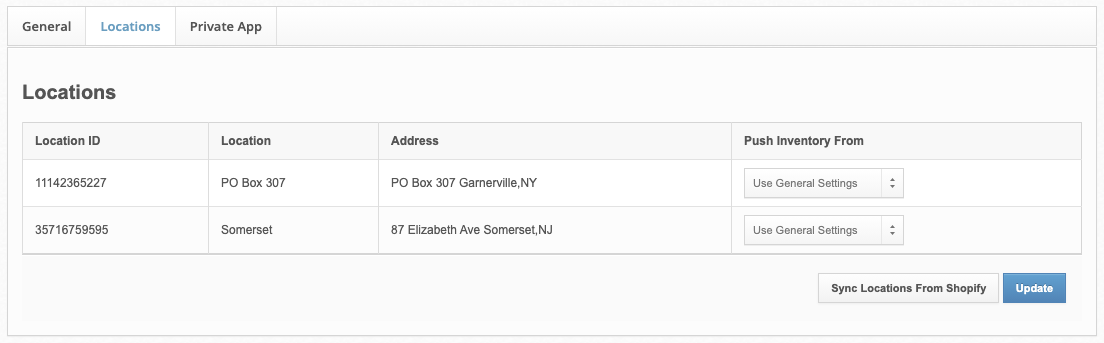
Adjusting the “Push Inventory From” Settings
Each Shopify Location can be configured individually. You can select one of the following options under Push Inventory From:
-
Use General Settings
Uses the default warehouse(s) defined in the General tab. This can combine multiple warehouses into one Shopify Location. -
Do Not Push Inventory
ShipHero will not update inventory for this Shopify Location.
⚠️ Recommended for locations like Retail, POS, or third-party fulfillment centers. -
Push from Specific Warehouses
Select one or more warehouses to feed inventory to this Shopify Location.
Tip: use CTRL or CMD to select multiple warehouses.
Manifest Recommendation
For Manifest-managed fulfillment, set this to “Push from specific warehouses → Manifest.eco / Primary.” All other locations should be set to "Do Not Push Inventory." This ensures inventory sync only applies to the Manifest location and doesn’t overwrite inventory for other Shopify locations.